Personalized virtual try-on
From product photos to a personal preview.
Shoppers upload their own photo, select clothing from your storefront, and explore a personal visual preview before checkout.
How it works
A clear path to a personal preview.
From adding your storefront to seeing a requested result, each step stays simple and clear.
-
Add your store
1
Add the storefront address where you want the widget to run.
-
Set up the widget
2
Choose the language and appearance that fit your brand.
-
Choose a garment
3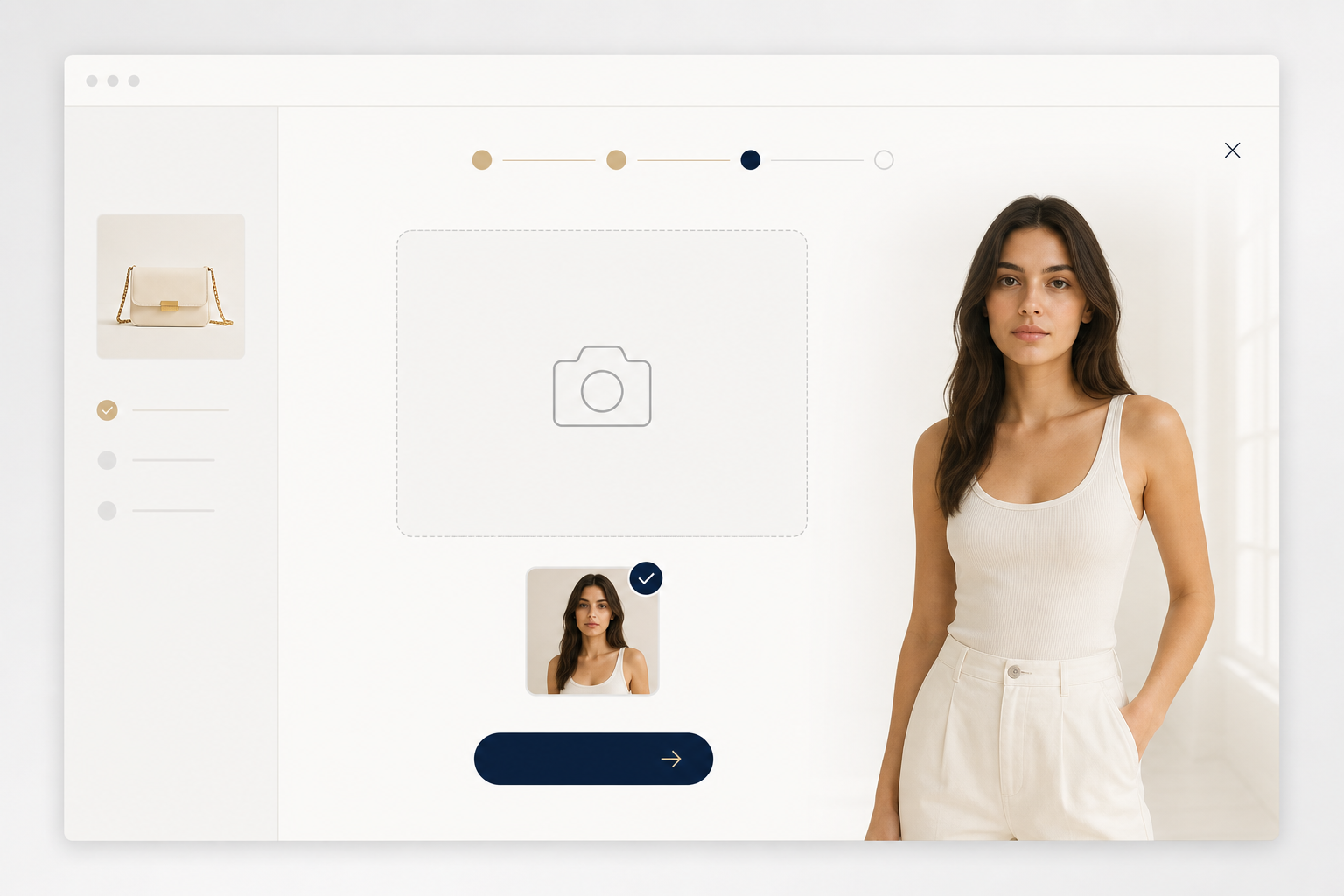
A shopper selects an item and chooses how to add a photo.
-
Request a try-on
4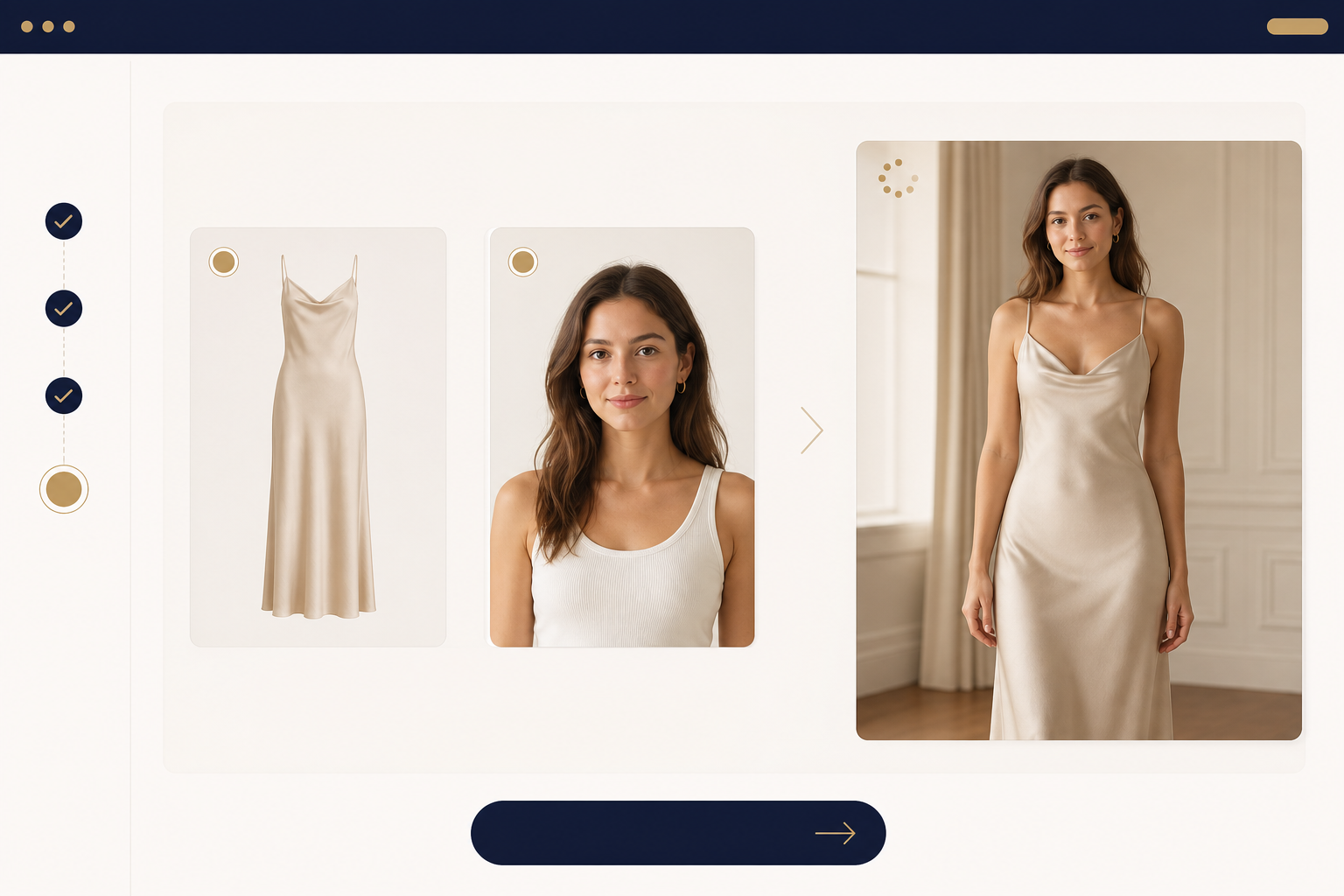
The selected garment and photo are prepared for the request.
-
See the result
5
The shopper can view the requested look on your storefront.
What shoppers see
A seamless try-on, right on your storefront.
Shoppers choose an item, add a photo, and view a personal preview without leaving your store.
- Browse products without leaving the storefront.
- Use a camera or upload a photo.
- View a result for the selected garment.
- Continue shopping with more confidence.
For store partners
A clear path from setup to result.
Create your workspace, approve your storefront, and add the widget in five straightforward steps.
No custom build is needed. Configure the essentials, then start offering try-ons on your approved storefront.
- 1
Create your workspace
Set up the partner space for your store.
- 2
Approve your storefront
Add the address where the widget may run.
- 3
Add the snippet
Place the generated snippet on your storefront.
- 4
Choose credits
Select a package and device limit for your store.
- 5
Start offering try-ons
Visitors can request previews on your approved storefront.
Built for store partners
Control that keeps your store moving.
AhaDrobe keeps the key setup and credit decisions clear, so you can focus on offering a smoother shopping experience.
-
Approved storefronts
Choose the store addresses where your widget can run.
-
Clear credit controls
Choose a package and set a fair limit for each device.
-
Usage at a glance
Review your available credits and try-on activity in one place.

For partners
Keep every try-on in your control.
Your partner workspace keeps the widget, credits, approved storefronts, and usage easy to review in one place.
- Approve exactly where the widget can run.
- Set a fair credit limit for each device.
- Review available credits and try-on activity.
Questions and answers
The setup, explained simply.
Everything a store needs to know before offering virtual try-ons.
See all questionsNeed help setting up or tailoring your widget?
Send an inquiry about implementation, storefront setup, or visual customization, and we will get back to you.